 Previous Topic
Configuring the Email Server
In order for users to publish report results to email and to notify the task status via email when scheduling tasks to run reports, create in-memory cubes, or create CRDs, administrators need to configure an email server in advance. This topic describes how you can configure an email server on the Server Console.
- On the system toolbar of the Server Console, navigate to Administration > Configuration > E-mail Server. Server displays the E-mail Server page.
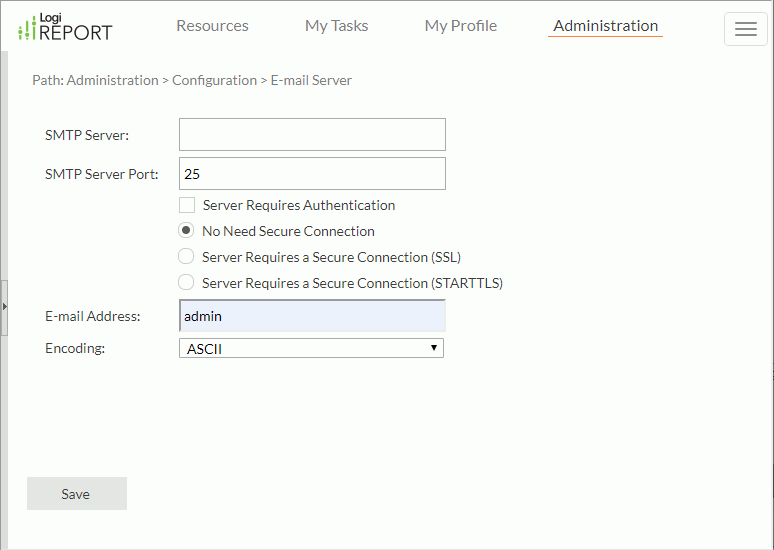
- In the SMTP Server text box, type the numeric or named host of the machine where the email server is located.
- In the SMTP Server Port text box, type the port where the email server runs.
- If the SMTP server requires authentication, select Server Requires Authentication, then specify the username and password for signing in to the SMTP server.
- If the SMTP server does not need a secure connection, keep the option No Need Secure Connection selected. If it requires a secure connection, select Server Requires a Secure Connection (SSL) or Server Requires a Secure Connection (STARTTLS) according to the SMTP server configuration.
- In the E-mail Address text box, type the address of the email sender. Make sure that the format of the specified address is valid.
- From the Encoding list, select the encoding for the titles and comments of the email.
- Select Save to apply the settings.
Logi Report Server saves the email server settings in the file mailconfig.properties in the <install_root>\bin directory. You can also use the file for default email server configuration. The following table lists the available properties and the UI options they are mapped to.
| Property in mailconfig.properties | Mapped UI Option |
|---|---|
| smtp.server | SMTP Server |
| smtp.server.port | SMTP Server Port |
| smtp.authentication | Server Requires Authentication |
| smtp.SSL | Server Requires a Secure Connection (SSL) |
| smtp.TLS | Server Requires a Secure Connection (STARTTLS) |
| mailbox | E-mail Address |
| mail.encoding | Encoding |
| smtp.user | SMTP Login Account > User Name |
| smtp.password | SMTP Login Account > Password |
 Back to top